How to Download an Entire Whop Course for Offline Viewing
How to save a full Whop course — every lesson, every module — as MP4 files. Covers the one-click whole-course download, the free route for the same result, storage planning, and organizing the archive.
Downloading a single lesson is straightforward. To download an entire Whop course — 20, 40, or 60 lessons — you need a plan. This guide covers both routes: the one-click whole-course download, and the free route that gets you the same files for more manual effort. Plus storage planning, and how to keep the archive usable a year from now.
Why people back up entire courses
The reasons are usually practical:
- Access uncertainty. Whop communities come and go. Creators close memberships, move platforms, or take content down. If you paid for a course and need to reference it in six months, a local copy is the only guarantee.
- Offline study. Flights, commutes, bad Wi-Fi.
- Data caps. Streaming 1080p repeatedly for review eats through an allowance. A local file doesn't.
- Course updates. Creators sometimes replace a lesson. If you rely on a specific version of the material, downloading it means you keep it even when it changes upstream.
Route 1: The whole-course download
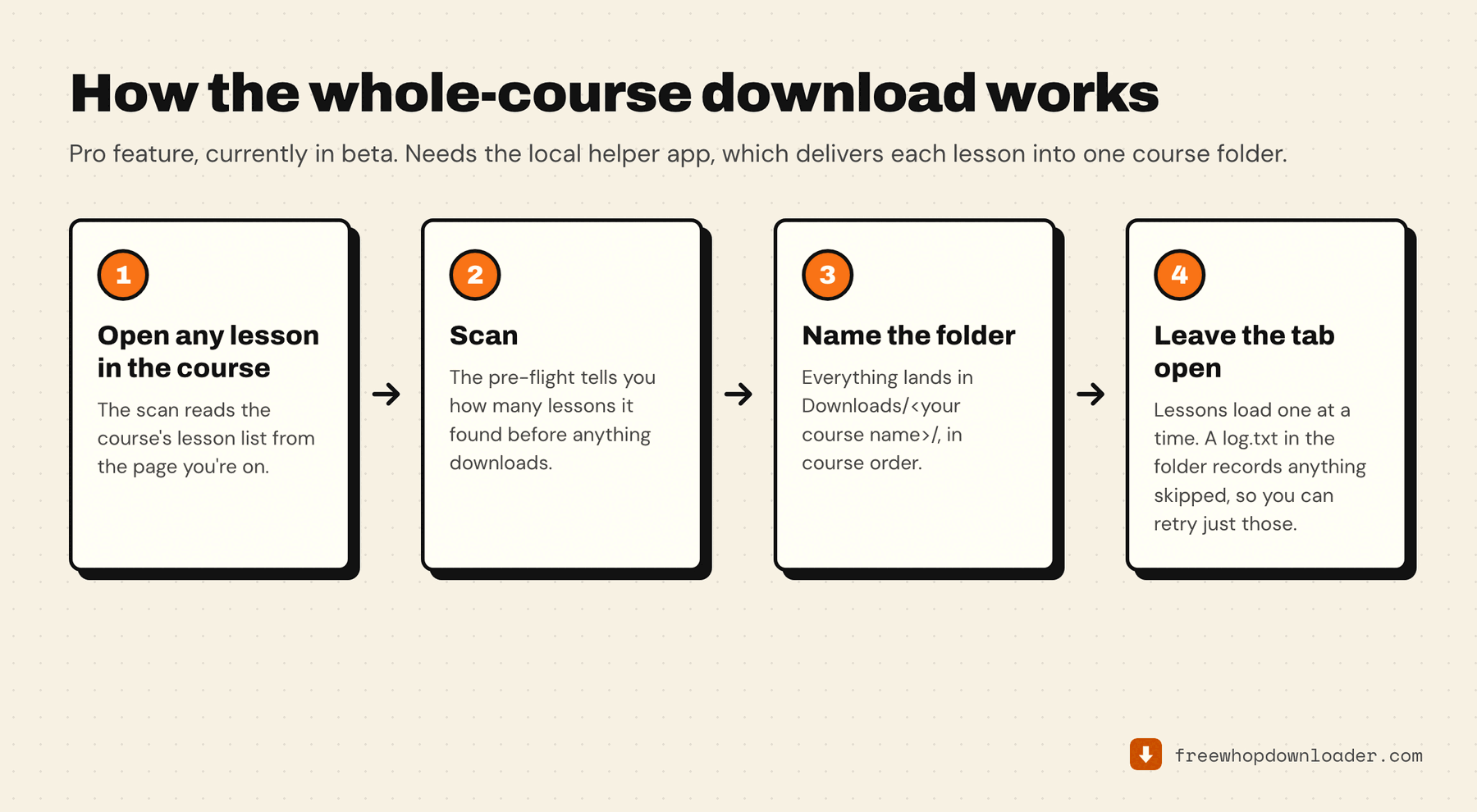
The extension has a Download entire course button. Open any lesson in the course, click it, and it scans the course structure first — telling you how many lessons it found before anything downloads. Name the folder, hit start, and it works through every lesson in order into Downloads/<your course name>/.
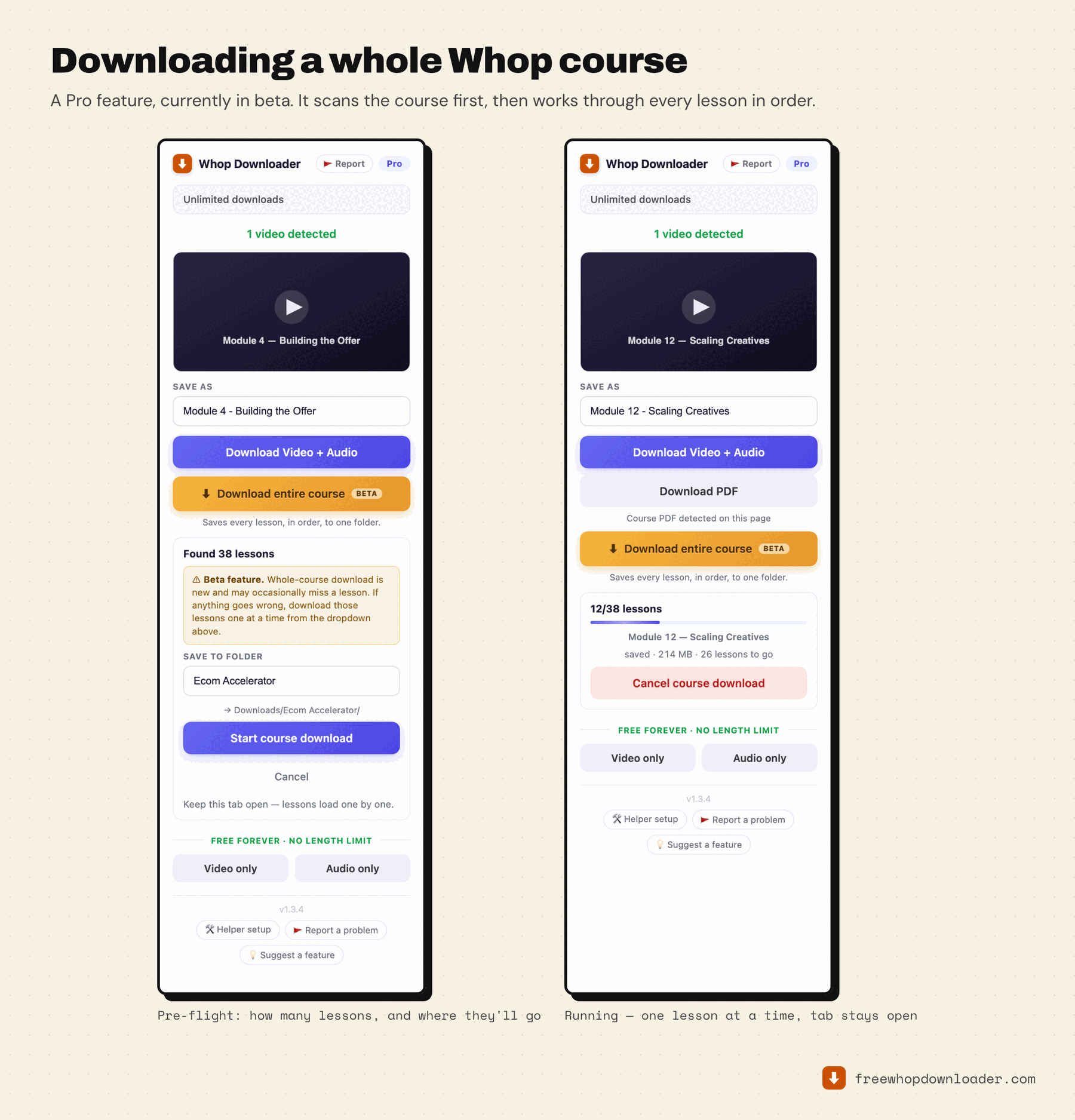
Three things to know before you rely on it:
- It's a Pro feature. On the free tier the button shows a lock.
- It's in beta. The extension says so itself in the pre-flight panel. It may occasionally miss a lesson — a
log.txtin the course folder records anything skipped, and there's a Retry skipped lessons button for exactly that. Anything still missing can be downloaded individually from the dropdown. - It needs the optional helper app. The helper delivers each finished lesson into the course subfolder; the in-browser path can't do that. If you're on Pro without it, the popup offers the setup guide — a one-time local install, about 60 seconds, no admin password. Install notes per platform: Mac, Windows.
Leave the tab open while it runs. Lessons load one at a time, and the progress panel shows which one it's on and how many are left.
Route 2: The free route to the same files
If you'd rather not pay, you can still archive an entire course for nothing — it just costs one extra step per lesson.
The free tier gives you 3 merged video+audio MP4s per week, forever. But video-only and audio-only downloads are unlimited and never spend a credit, at any video length. So for each lesson: download the video-only file, download the audio-only file, and merge them locally with a stream copy — no re-encode, no quality loss, a couple of seconds each:
ffmpeg -i "lesson-video.mp4" -i "lesson-audio.m4a" -c copy "lesson.mp4"
HandBrake and VLC do the same job without a terminal. The details, including the one case where the separate buttons don't appear, are in Whop audio-only and video-only downloads.
For a 40-lesson course, that's 80 downloads and 40 merges — tedious, but genuinely free, and the result is byte-for-byte what the paid path produces. What you're buying with Pro is skipping it, which is the honest framing of the free tier.
Route 3: One lesson at a time, on the free tier
If you're studying as you go rather than sprinting through a backup, this is often enough on its own.
Open a lesson, refresh the page, press play, open the popup, download. Repeat. Merged downloads run one at a time — the in-browser merge is exclusive, so there's no parallel queue to set up.
At 3 merged downloads a week, a 30-lesson course takes about 10 weeks. That's fine if you're working through it at a lesson or two a week; it's not fine if your access ends next month. Which brings us to timing.
If you're downloading to preserve access before a subscription ends, prioritize the lessons you haven't watched yet over ones you've already studied. You can always watch a finished download later; you can't recover content you didn't save before access closed.
Storage planning
Estimate before you start. Sizes vary by creator and by how much motion is in the frame — a talking head compresses far smaller than a screen recording — but these are reasonable planning figures:
| Resolution | Typical bitrate | Storage per hour |
|---|---|---|
| 360p | ~500 Kbps | ~225 MB |
| 720p | ~2.5 Mbps | ~1.1 GB |
| 1080p | ~5 Mbps | ~2.25 GB |
A 20-lesson course with 45-minute lessons at 720p: 20 × 0.75 hr × 1.1 GB ≈ 16 GB. A 40-lesson course with 30-minute lessons at 1080p: 40 × 0.5 hr × 2.25 GB ≈ 45 GB.
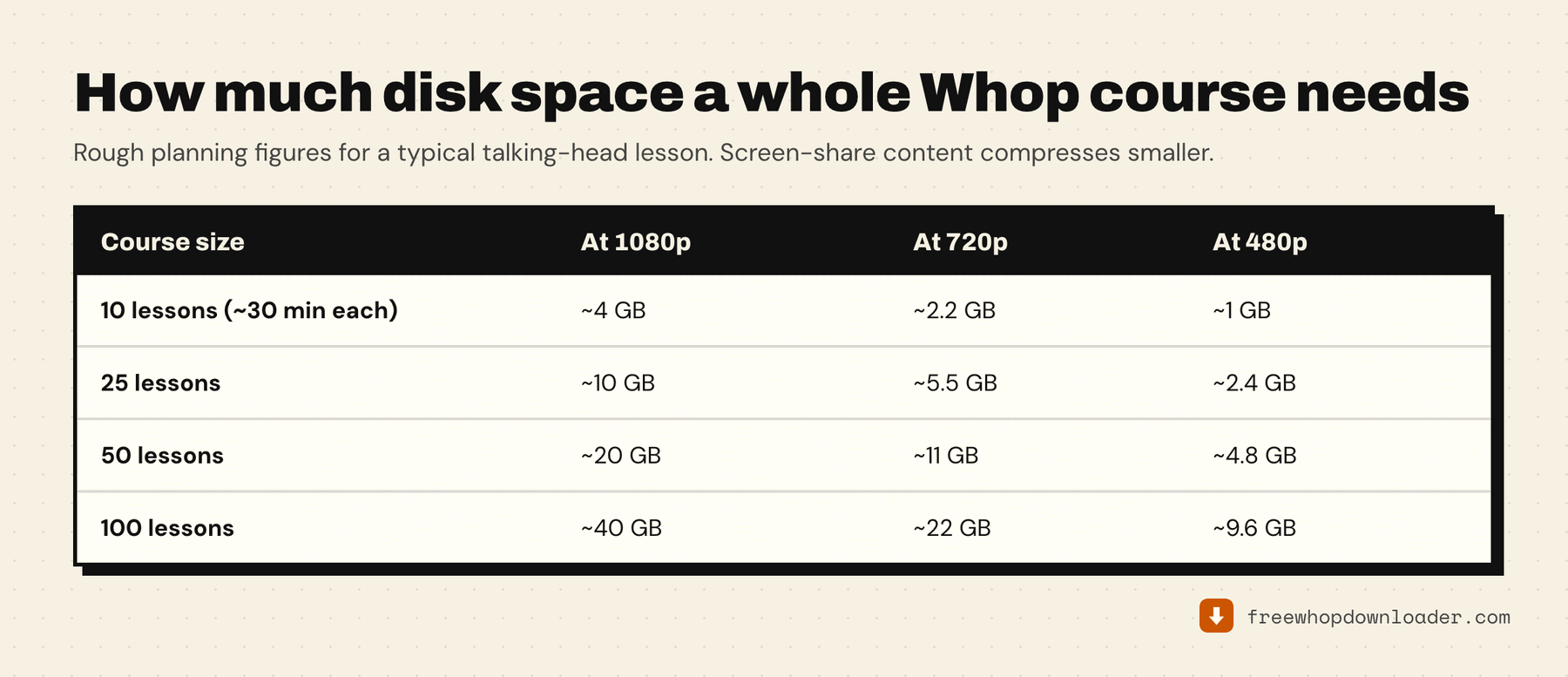
For anything over 20 GB, use an external drive. Downloading a 40-lesson course onto a nearly-full laptop SSD is a bad time, and a failed write halfway through a bulk run is worse.
One thing you can't tune: there's no resolution picker. The extension always takes the best rendition the source publishes, on every download type. So plan storage around 1080p unless you know the creator published lower.
Downloading before access expires
If your Whop access is time-limited — a monthly subscription, a cohort with an end date — don't wait until the final week.
You can only download what you can currently play. Once access ends and the content locks, there's no stream for the extension to read, and no tool of any kind can recover it. Start early, or compress the job with the whole-course download.
Keeping the archive organized
A few things that matter once you're storing 30+ videos:
- A folder per course, not per creator. Courses move between platforms; creators rebrand.
~/Whop Courses/[Course Name]/holds up. - Number the files if the creator's titles don't already.
01 – Introduction.mp4,02 – Setting Up.mp4sorts correctly in any file browser. The whole-course download preserves course order, which does most of this for you. - Drop a text file in the folder with the course URL and your access status. Six months later you'll want to know whether you can still get back in.
- External SSD over cloud sync for video. Syncing 40 GB to iCloud or Drive costs money and time; a 1 TB external is faster to reach and has no monthly fee.
- Keep the
.vttsubtitle files. They save automatically alongside each video where captions exist, and they make an archive searchable in a way the video alone isn't.