Screen Recording Whop Videos vs Downloading: Why One Wins by a Mile
Thinking about screen recording Whop course videos? Here's a direct comparison: screen recording vs downloading using a browser extension. Quality, speed, file size, and effort — all covered.
Thinking about whether to screen record Whop videos? You're probably sitting in front of a lesson wondering whether to open OBS or QuickTime, or whether there's a cleaner way to save it. There is, and screen recording isn't it.
This article runs through a real comparison — same video, both methods — so you can see exactly what you're trading away if you go the recording route.
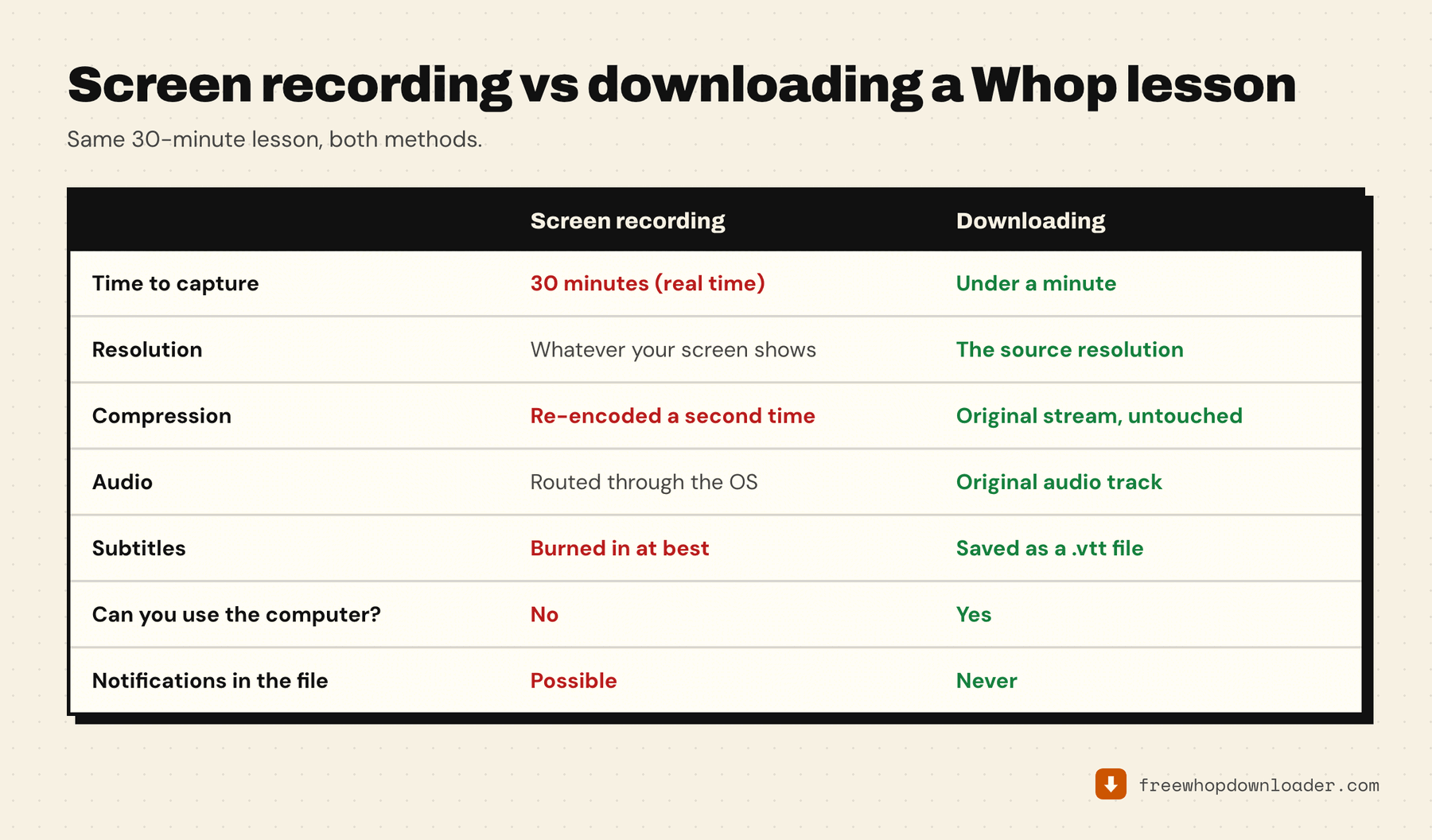
The core difference
Screen recording captures pixels off your display. A downloader fetches the original source stream and saves it as a file.
That distinction matters more than it sounds.
When you screen-record, you're essentially filming your monitor. Your operating system renders the video, your screen recorder films that rendering at whatever resolution your screen runs and whatever frame rate your encoder can keep up with, and then it compresses the result. You start with a compressed stream, decode it to your screen, and then re-compress it. Every generation of compression degrades the image.
When you download, the extension fetches the raw HLS stream directly from Mux's CDN — the same files the Whop player pulls, before any decoding happens. It then merges video and audio into a standard MP4. What you get is the original upload quality with no extra encoding steps.
Speed: real-time vs async
This is the biggest practical difference for anyone with a full course to save.
Screen recording: You sit through the entire video. A two-hour module takes two hours to record. A 12-lesson course with 45-minute lessons takes nine hours of recording. You have to be there the whole time, keep the browser focused, make sure notifications don't pop up, and hope your connection doesn't hiccup. If it does, you get a glitch in the recording.
Downloading: The extension fetches the stream data at full network speed, not playback speed. A 45-minute 1080p video typically downloads in one to three minutes. A 12-lesson course can finish while you make coffee. You queue it and walk away.
Quality comparison
Here's what you're looking at side by side:
Screen recording quality:
- Capped by your monitor resolution (most people run 1080p, some 4K — but if the Whop player plays at 720p by default, that's what gets recorded)
- Re-encoded by your screen recorder at whatever bitrate and codec settings you've configured (most defaults are mediocre)
- Cursor movement, mouse clicks, scroll events, and browser chrome can all appear if your recorder isn't perfectly cropped
- Any network buffering event — brief stutter, resolution switch — shows up permanently in the recording
Download quality:
- You get the best rendition the creator actually published — the extension picks it automatically, so there's no setting to get wrong
- The stream data is fetched directly, not decoded and re-encoded
- Audio and video are merged in a mathematically lossless way — no re-encoding of the content streams
- Clean file with no UI artifacts, no cursor, no notification flashes
For lecture content with slides or code, the difference is visible. Screen-recorded text at 720p often looks softer and harder to read than the same content downloaded at 720p directly.
File size
Counterintuitively, screen recordings are often larger than downloaded files for the same apparent quality. Mux uses HEVC or H.264 encoding tuned for streaming efficiency. Screen recorders typically encode in whatever codec is fastest for real-time capture, which is rarely the most efficient for storage. A 45-minute lesson might be 800MB as a screen recording and 400MB as a direct download at the same perceived quality.
Audio quality
Screen recording picks up your system audio through a loopback capture — the digital equivalent of holding a microphone next to a speaker. It works, but introduces another encode step. If your Whop player is outputting compressed AAC audio and your screen recorder re-encodes that to MP3 or a different AAC bitrate, there's audible degradation in some setups, particularly in music or high-frequency voice content.
Downloaded files carry the original audio stream: usually AAC at the bitrate the creator uploaded, merged as-is into the MP4.
When screen recording actually makes sense
Screen recording isn't useless — it just has specific use cases:
- Live sessions and webinars. If something is streaming live and won't be available as a recording afterward, screen recording is the only option. Downloaders can't capture live HLS streams with expiring tokens.
- DRM-protected content. If a creator has applied DRM, the stream is encrypted in a way no extension can read. Screen recording is then the only non-technical workaround — and even then, many DRM implementations block screen capture at the driver level on Windows. This is rare on standard Whop course video.
- Content from platforms with no extension support. If you're on a platform that the downloader doesn't support, screen recording is a fallback. For Whop specifically, this shouldn't apply.
For standard pre-recorded Whop course content — the thing most people actually want to save — downloading is faster, higher quality, smaller file size, and requires zero effort while it runs.
Quick setup if you haven't done it
The free Whop Downloader works on Chrome, Edge, Brave, and Opera. Install it from the Chrome Web Store, open your Whop lesson, refresh the page and press play, then click the extension and hit download. That's it — for normal videos there's nothing else to install, because the merge runs inside the browser. The full step-by-step is here.
Three merged MP4 downloads per week are free forever, and audio-only and video-only downloads are unlimited at no cost — which, if you were considering recording a whole course, is the part worth reading.
Compared to configuring OBS, setting up audio routing, sitting through a two-hour video, and then discovering the recording has a cursor stuck in the corner — it's not a close competition.