Whop Video Not Downloading? Every Fix, In Order
Whop downloader not working? Every reason a Whop video won't download — no video detected, stalled downloads, failed merges on long videos, download managers, Mac Gatekeeper, Windows SmartScreen — and the fix for each.
Whop video download not working? Nine times out of ten it has a one-line fix, and it's the same one. This guide goes through every failure mode in order from most common to least, so you can work down the list and stop when it's solved.
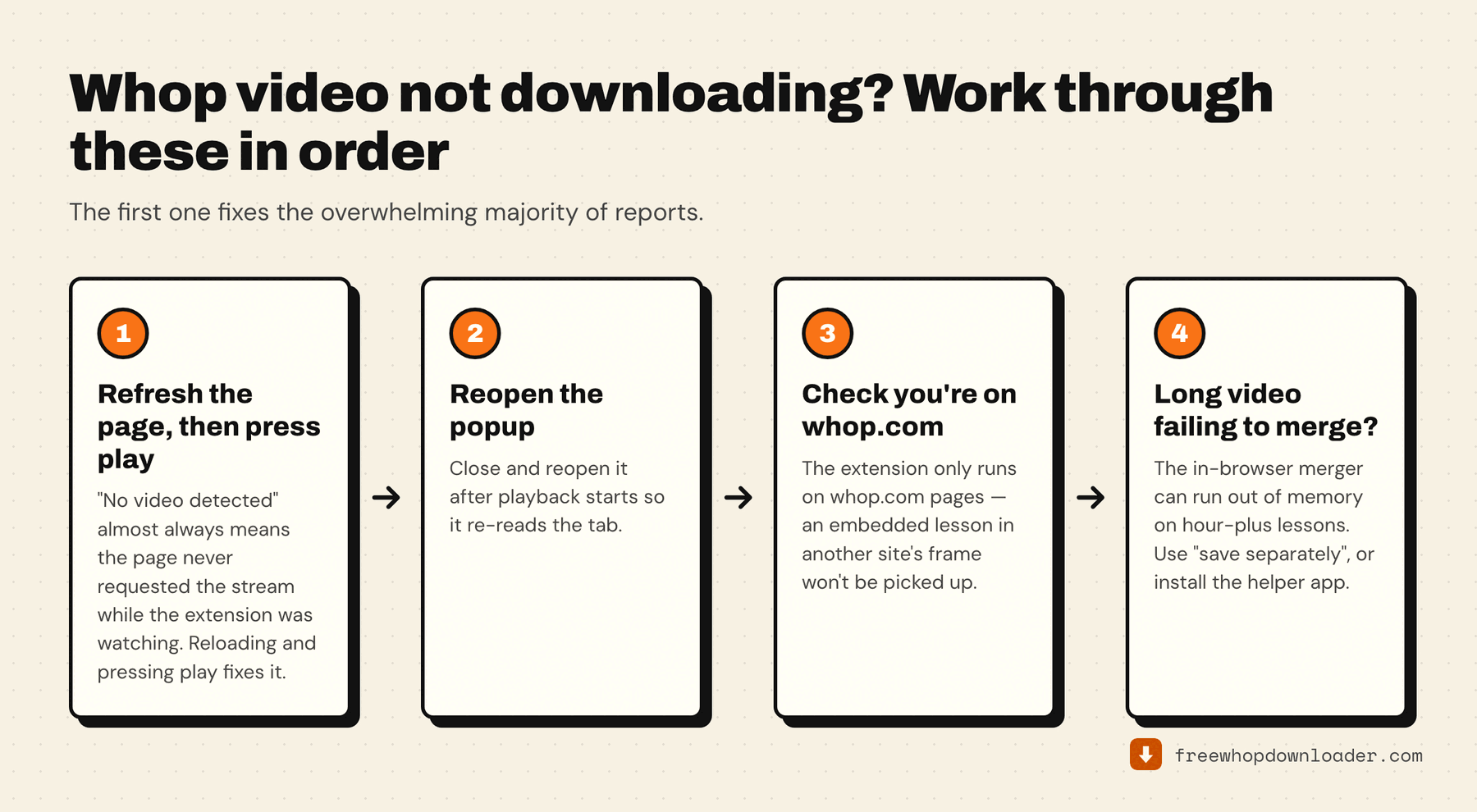
Problem 1: "No video detected"
This is the most common issue by far, and it's almost never the extension's fault.
Whop serves its lesson video through Mux as an HLS stream, and the extension finds that stream by watching the page request it. If the page made that request before the extension was watching — because the tab was already open, or you'd just installed the extension, or you opened the popup before pressing play — there's nothing for it to find.
Fix: Reload the lesson page. Press play. Let it run a couple of seconds. Then open the extension popup, which re-reads the tab each time it opens.
That order matters: refresh first, then play. Pressing play on a stale tab often isn't enough on its own.
If it still doesn't appear:
- Make sure you're on the actual video lesson page, not a module overview or community dashboard that only links to lessons.
- Make sure you're on a
whop.comURL — the extension only runs there. - Check the video is genuinely loading rather than sitting on a buffering spinner. Wait for real frames before reopening the popup.
Problem 2: Download stalls or freezes mid-progress
The download starts, the progress bar moves, then it stops — stuck at 40%, 70%, wherever.
The most common cause: the browser tab was closed, navigated away from, or went to sleep. The extension fetches segments while the page is alive; if Chrome suspends the tab to save memory, or your computer sleeps, the work stops.
Fix:
- Keep the Whop tab open during the download.
- Turn off tab suspension while downloading:
chrome://settings/performance→ Memory Saver off. - If it's fully stalled with no progress for several minutes, cancel and restart. Partial data is discarded, so you start clean.
Problem 3: The merge fails on a long lesson
The segments all download, then it dies at "merging" — or the popup warns you before it starts that the video is large.
Cause: for normal videos the extension merges video and audio inside the browser, which is why nothing else needs installing. That in-browser merger runs in the tab's memory, and an hour-plus lesson can exceed what it has to work with.
Three fixes, in increasing order of effort:
- Save video and audio as separate files. The popup offers this on large videos. You get two files instead of one, and you can join them in seconds with HandBrake, VLC, or one line of ffmpeg. This costs you nothing — separate-track downloads don't spend a free-tier credit either, which is covered in audio-only and video-only downloads.
- Install the optional helper app. A one-time local setup, about 60 seconds, no admin password. It does the merge outside the browser, so there's no memory ceiling. Platform-specific install notes are in the Mac guide and the Windows guide.
- Try in-browser anyway. The warning is a heads-up, not a hard block — plenty of long videos merge fine.
Problem 4: It says the file saved, but nothing is in Downloads
Or the popup shows an error about the download being interrupted.
Cause: a third-party download manager. Free Download Manager, Internet Download Manager and similar tools hook into Chrome's download system and choke on the internal URLs the extension hands them, killing the save at the last step. The extension detects this case specifically and says so, because it's otherwise indistinguishable from a network failure.
Fix: disable the download manager's browser extension (not necessarily the app itself), then download again.
Also worth checking: on Windows, if OneDrive manages your Downloads folder, a finished file can be cloud-only rather than local. On Mac, check that your browser's download location hasn't been changed. Search the file system for recent .mp4 files before concluding it's missing.
Problem 5: Download finishes but the file won't play
Interrupted write. If the tab was closed mid-download you can get a partially written file. Delete it and download again with the tab left open.
Only one track. If you used Video only or Audio only, the file is exactly that by design — a silent video, or audio with no picture. Grab the other one and merge them; see audio-only and video-only downloads.
Codec. Older Windows Media Player builds don't handle HEVC. VLC plays everything, free, and is the fastest way to rule this out.
Problem 6: The subtitle file didn't appear
Subtitles save as a .vtt file next to the video, automatically, when the lesson has them.
If none appeared, the lesson most likely doesn't declare a caption track — plenty of course videos don't. Captions burned into the picture by the creator aren't a separate track and can't be extracted by anything.
Problem 7: Extension icon isn't visible in Chrome
Click the puzzle icon (Extensions) to the right of the address bar, find Whop Downloader, and click the pin. Also check it isn't toggled off in chrome://extensions.
Problem 8: It's not working in Safari, or on my phone
Those aren't supported, and it isn't a roadmap gap — the browser engine on iOS and Chrome for Android can't run this class of extension at all. The full technical reason, and what to do instead, is in downloading Whop videos on iPhone or mobile.
Problem 9: DRM-protected content
If a creator has applied hardened DRM to a video, the stream is encrypted in a way that can't be decrypted outside the browser's protected playback pipeline. No browser extension can download that — not this one, not any other. That's a deliberate lock, not a bug.
Standard Whop course video isn't DRM-protected, so this is rare in practice.
Problem 10: It worked before and stopped after a Whop update
Whop occasionally changes its player or community interface, which can affect stream detection.
Fix: make sure the extension is current. Open chrome://extensions, turn on Developer mode, and click Update. Fixes for platform changes are typically published within a day or two.
Still stuck? The popup has a 🚩 Report button in its header (and a "Report a problem" link in the footer). It sends a small diagnostic snapshot — extension version, plan tier, helper status, and the last few download errors — after showing you exactly what's included and asking for consent. Nothing is sent until you press Send. An email address is optional and only used to tell you when it's fixed.
If the extension is finding videos fine and you're just weighing it against other approaches, every free Whop downloader compared covers the alternatives, and the manual yt-dlp route works even when an extension can't.